Part 4: Tapping
TL;DR
'Tapping' means to tap out the initial rhythms of the song: every time a syllable or pitch changes, you press a key. In that sense, it is a rhythm game where the better you do, the less work you have to do later on.
Tapping can be done with some other programs, but we will be using UltraStar-Creator. Open it, select your song, fill in the metadata (as necessary), then hit the Play button to start tapping.
You can freely pause/continue with the P button, or undo the last tapped note(s) with the X button (one undo per press). You can also slow down the song if it is too fast or you are unfamiliar with it.
If you realise while tapping that you made a mistake in your lyric transcription (for example, you forgot a word or you forgot to split a word), hit X to undo until you get to the point where the mistake happened, then hold the previous note through the current word and what would have been the next syllable had it been tapped correctly.
Once you have completed initial tapping, you will have a baseline that you can finetune in the next part.
Overview
Once you have your song lyrics and BPM, you're ready to start tapping! Tapping basically means to press and hold a button for each syllable -- normal or sung -- as it appears. Or, put another way, every time there is a change in pitch or sound, press a button. In this regard, it's basically a rhythm game where the closer you are to 'accurate', the less work you will have to do later on.
To tap the song, we will be using UltraStar-Creator. While other editors have some note tapping capability, UltraStar-Creator is still used by a lot of the community -- despite its shortcomings, like being picky about formatting -- because it is the fastest way to get a baseline chart that is easier to finetune. Song editors like Yass (Reloaded) and Karedi work better when they finetune something that was already tapped in UltraStar-Creator.
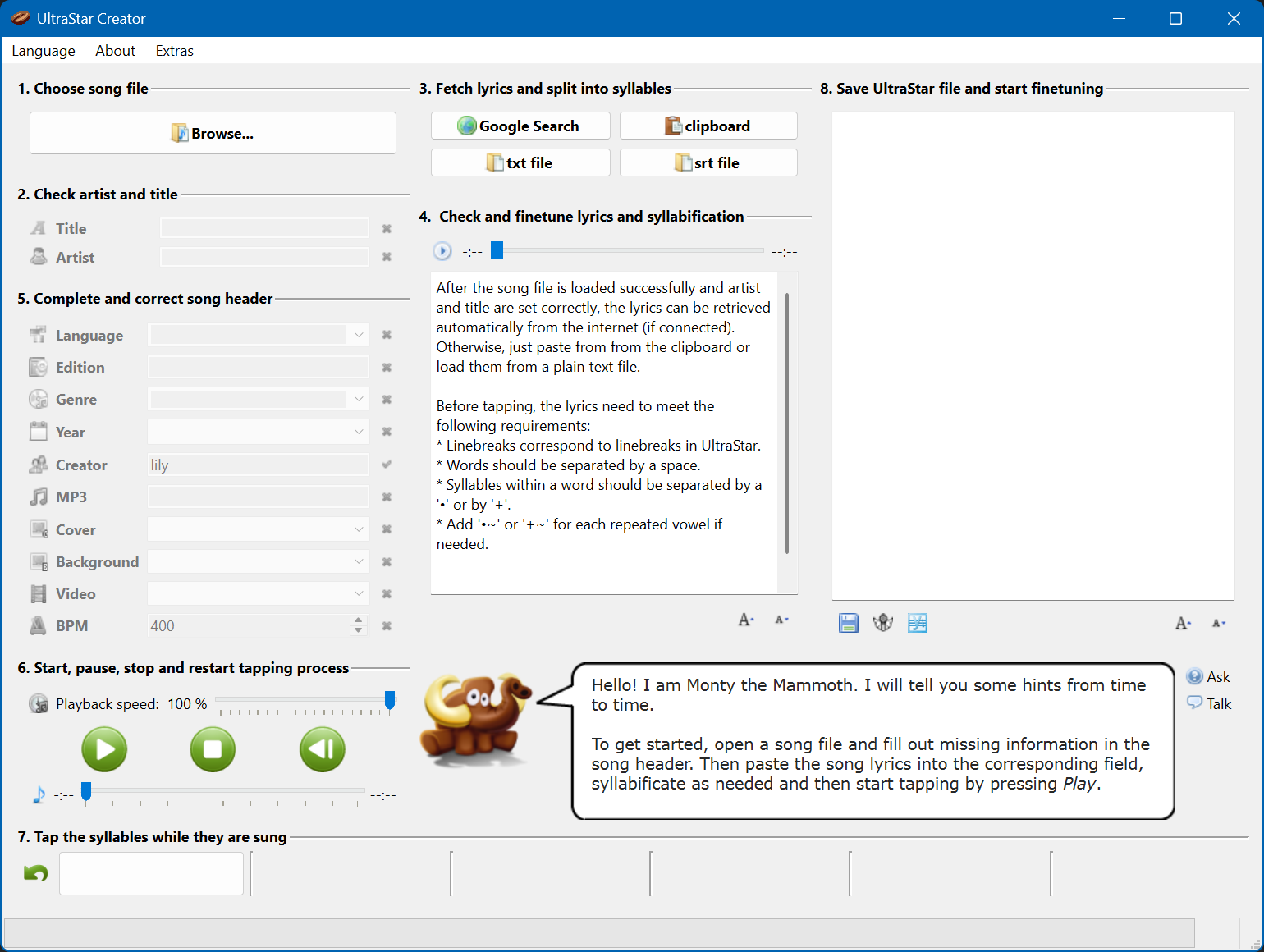
When you open UltraStar-Creator, you'll see a window like this appear:
UltraStar-Creator initial window
Click "Browse", then navigate to wherever your song file is. If the song has metadata on it, then it will automatically populate, but otherwise fill the information as necessary:
UltraStar-Creator window with data filled in
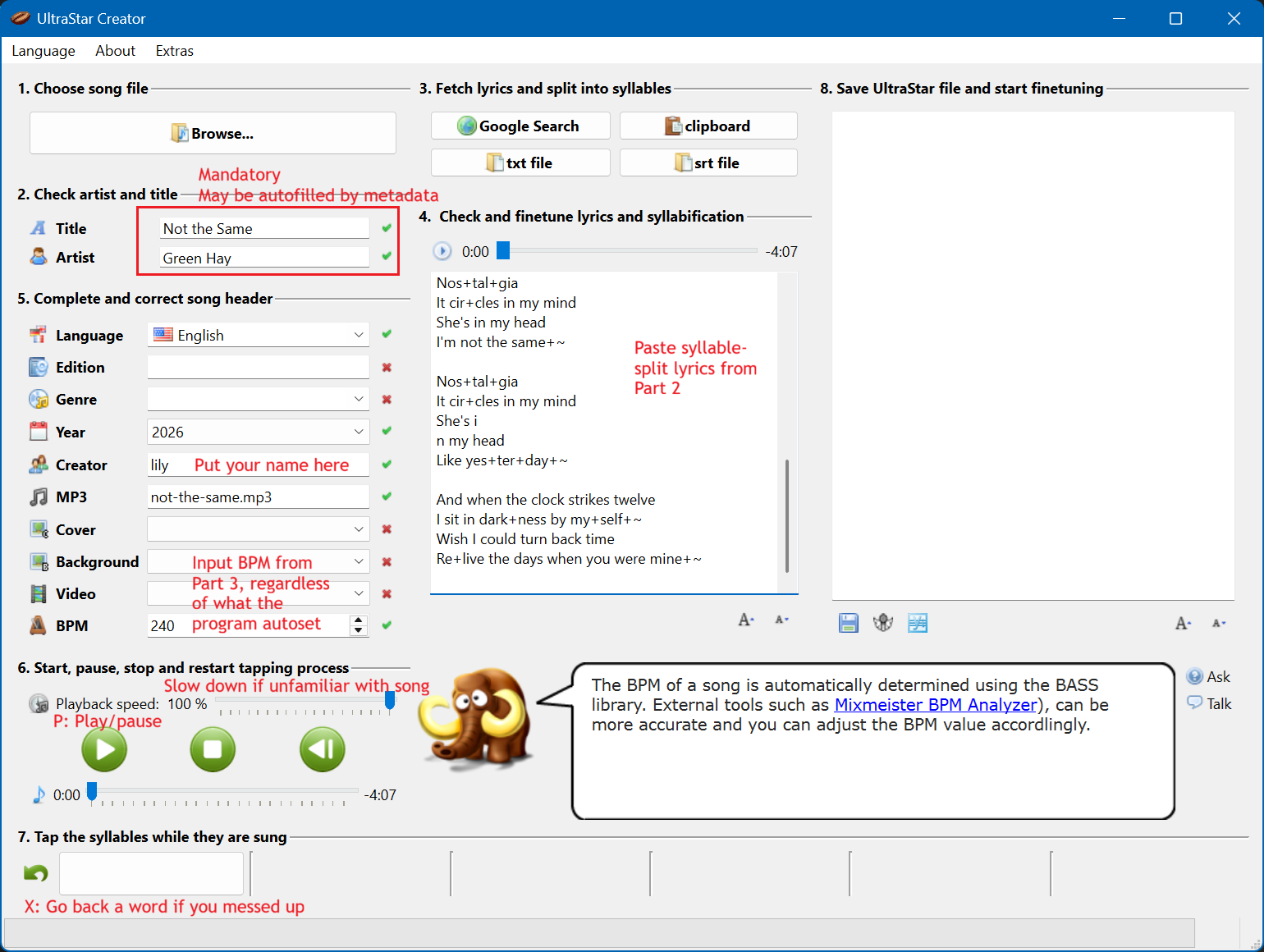
Then, whenever you're ready, press the play button or press P to start tapping! If you need to take a break midway through the song, you can press P again to pause.
Some useful tips while you tap:
- If you don't know the song that well, or the song is very fast, try using the slowdown option (playback speed) above the playback buttons.
- If you make a mistake, press X and the song will undo the last note tapped and go back one second. Press X multiple times in succession if you realise you've made several mistakes that you'd like to correct (for example, an off-by-one error from an unsplit note).
- Use the space bar to tap. It is generally going to be more precise and reliable than clicking.
- Hold the space bar for roughly the length of the syllable. It doesn't need to be perfect -- you can always shorten or lengthen notes as necessary later -- but holding the space bar for at least some length of time (rather than just quickly pressing space) will mean less work, since you won't be guaranteed to lengthen every single note.
When you let go of the space bar on the last syllable, UltraStar-Creator will stop playing the song and ask you if you wuold like to save what you've done. Click on "Great! Save the file.", then Save in the File Explorer window that appears. (UltraStar-Creator will save the TXT to the same location as the MP3 -- for example, if your audio file is in C:\Games\UltraStar Deluxe\songs\Green Hay - Not the Same, then that is where it will save.)
About undoing mistakes
UltraStar-Creator is a bit buggy with undoing. If you press X too many times or too quickly, it may lose track of what to undo/redo, and you may end up with something like this:
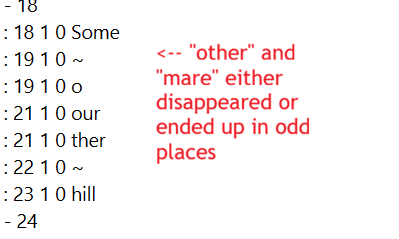
While it is not impossible to fix this later on, it is a pain in the butt to fix. So, avoid causing it in the first place by not pressing X too quickly. If you need to undo a whole line, try to limit pressing X to three or so times a second so that the undo/redo buffer thing has a chance to catch up.
If you made a transcription mistake
In your lyrics, it is inevitable that you will end up with a transcription 'mistake' somewhere. Maybe you forgot a word, maybe you forgot to split a word (short words like any and into can be common culprits). When this happens, you probably won't notice until you've already tapped it, because every note thereafter will be off-by-one.
Let's use this example from Vylet Pony's *A Digital Flower Field to illustrate this:
Can't change those+~ marks, but you can change your+~ sight
With hearts as strong as horses, we'll walk on through the night

And it might not get much ea+si+er
If you want to listen to it for yourself, this excerpt starts at 2:47, but you might have already noticed the error: horses was not separated into its syllables hor and ses. If you were to tap this, you probably wouldn't notice until you get to the word night and realise that the word And is already tapped -- hence, an off-by-one error.
If this happens, you do not need to stop the song and re-tap it. Instead, you can resolve this as soon as you catch it by undoing (pressing X) until you get back to the beginning of the line with the error. In this case, you would undo until the last word that was tapped was sight.
Then, tap as normal, but once you get to the word horses, hold the space bar for the full length of the word horses. You can split it back into hor / ses during finetuning.
Results
Here's a video of me tapping this song in real time:
UltraStar Song Creation Tutorial: Tapping example
The song is tapped, meaning we now have our baseline TXT. All that is left is to fine-tune the positions of the notes, pitch them, add golden notes, and then our song is complete!
Here's a video of the gameplay of this baseline chart. Notice how all pitches are the same and some note positions don't quite make sense, but other than that the notes seem pretty on time (at least visually). The better you get at tapping, the closer you can get to this baseline, which means less work during finetuning and pitching!
UltraStar Song Creation Tutorial: Initial Tapping Gameplay Results
Tip: As you can see from the video, I use the "Ball" lyric display option because it is the best for viewing note positions and timings at a glance during testing, compared to the more popular "Slide". This is doubly the case if you use Spaces Before Text like I do, since Slide will count the space as part of the word, thereby delaying the 'slide' visual effect for every single word.
Next steps
Now that the song is tapped, we will need to finetune the note positions before we can pitch it. (Or you can do both simultaneously!)
<< Back to Part 3: BPM >> Continue to Part 5: Finetuning
Quick navigation: Index / Preface A / Preface B / Part 1: Audio / Part 2: Lyrics / Part 3: BPM / Part 4: Tapping / Part 5: Finetuning / Part 6: Pitching / Part 7: Golden Notes / Part 8: Testing / Part 9: Submission