Part 1: Audio
Before you start...
You should make ABSOLUTELY SURE that the song you want to make does not already exist. For normal songs, check USDB and see if it's highly rated (and/or test to ensure that it's actually playable). For pony fandom songs, ask someone on the My Little Karaoke Discord. It would be very unfortunate to chart a song that already exists, especially if that existing chart is already pretty good.
TL;DR
- Acquire your audio. Most people will do this from YouTube, as it makes it easy for other people to download the same audio.
- For your first song, you may want to select something that is rhythmically consistent and with an unchanging BPM. For this tutorial, I'll be using Not the Same by Green Hay (a parody of Green Day's "Whatsername").
- Convert your audio as necessary. I personally usually use MP3 320kbps CBR for compatibility reasons, but you are free to use anything you want, or even change your audio later.
- The MP3 format adds roughly a 30ms delay compared to other formats.
- UltraStar-Creator only supports MP3, M4A (AAC), and OGG.
- If you have a vocal stem / a cappella (voice only) of the song, you may want to keep it for later, or create one using a vocal isolation tool.
Acquiring audio
Copyright notice
Like most things, music is copyrighted. This means that you should generally avoid distributing music unless you have a license (or permission) to do so. For this reason, people generally distribute the TXT files and expect others to acquire the audio in some other way. When using something like the USDB Syncer, music is downloaded from YouTube by the user, which shifts the onus from you, the chart creator, to the user.
Welcome to the actual beginning of the tutorial! The first step of creating a karaoke chart is to source your audio. There are a variety of ways to do this: Maybe you have a song on a physical CD, in which case you will want to rip it to an audio file. Maybe the song only exists on YouTube, in which case you will want to download it with something like yt-dlp.
Personally, for most fandom songs, I first check if the author has a Bandcamp, and then buy the song (or download the 128kbps stream). These are generally easier to distribute as it's easier to get permission from the artist (or you may be distributing it in a very limited capacity anyway, like in-person or on a very small forum). For more traditional, non-fandom songs, YouTube videos -- particularly automatically generated ones, like Artist - Topic -- will be easiest, as others will be able to download them, possibly even automatically. The automatically generated videos are also most likely to be directly pulled from albums, which will omit any weird silence or intros or outros that might exist in a user-uploaded video.
For your first song, I would recommend a song that you know well and that is very rhythmically consistent, because it will be the easiest for you to chart. It should have these attributes:
- The BPM does not change throughout the song (it stays on one speed for the whole song)
- The singer(s) almost always sings on time with the music (they do little to no flowery stuff like singing notes early or late)
- There are few to no spoken word parts or rap (these are generally a bit harder to chart as you may have to rely on timing outside of the rhythm of the song, and it may be near impossible to pitch)
- You know the song (you should not chart a song you have barely heard as your first song)
Fortunately, this actually applies to a lot of music! Strategies for songs with more complex rhythms will be discussed later on in the guide.
For this tutorial, I'll be using Not the Same by Green Hay (a parody of Green Day's Whatsername). The main reasons for this are:
- It's short (there aren't that many lyrics)
- It's very rhythmically consistent
- It's a parody of a non-fandom song, which makes it more recognisable to the non-pony fans reading this tutorial
The audio for this song is available here.
Once you have your audio, you should place it in a folder in your songs directory: for example, C:\Games\UltraStar Deluxe\songs. The traditional naming scheme for a folder is Artist - Song Title, so in this case I would put the audio file in C:\Games\UltraStar Deluxe\songs\Green Hay - Not the Same.
Ripping audio from YouTube
If you're grabbing audio from YouTube (e.g. with yt-dlp), you can use yt-dlp -f bestaudio -x to extract the best possible audio, or yt-dlp -f bestaudio -x --audio-format <format> to download and automatically convert the audio to the format of your choice (e.g. vorbis for Ogg Vorbis, mp3 for MP3). **yt-dlp requires Deno for ripping content from YouTube, and ffmpeg for format manipulation.
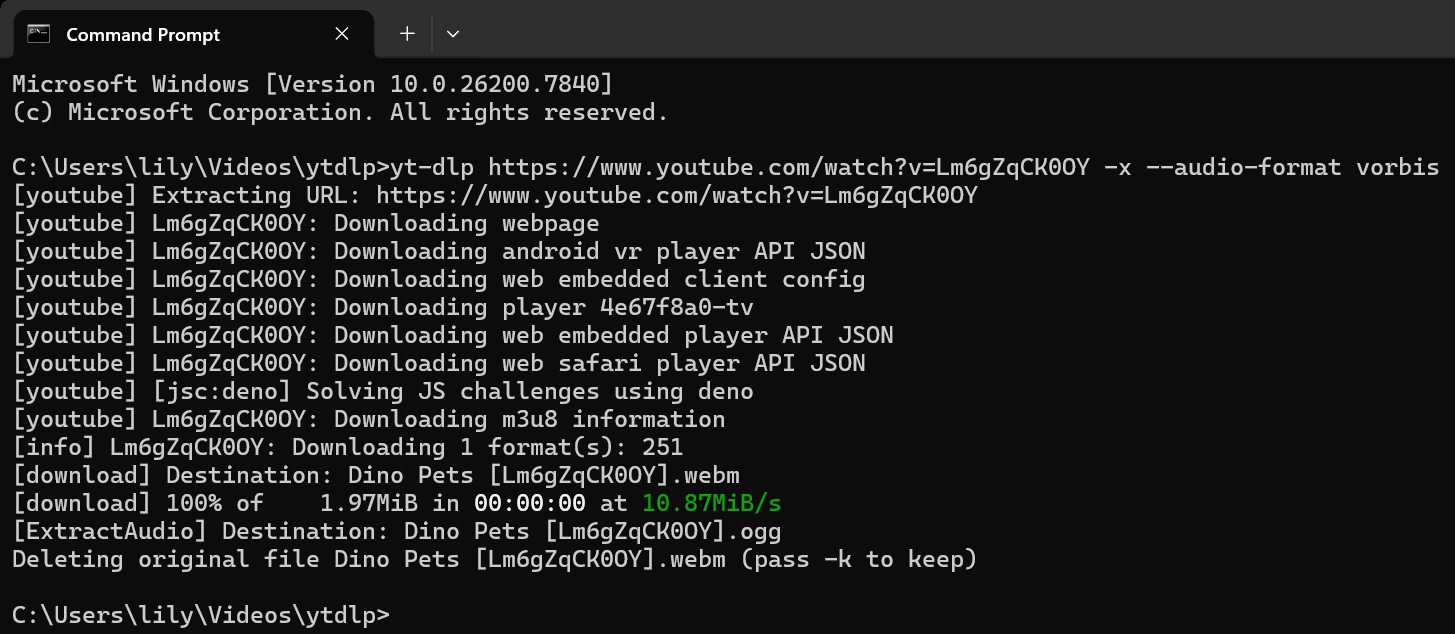
Unfortunately, use of the command line is not currently covered by this tutorial. If you can't use the command line, any web converters (e.g. Cobalt) should also work. YouTube audio quality isn't all that good anyway.
A note on YouTube music, GAPs, and CD audio
Depending on the song or album, the gap may differ between the audio ripped from a CD and the audio that exists on YouTube. For the purposes of song distribution, even if you have a lossless CD that you want to use as audio from your private collection, you may want to distribute a version of your TXT that uses the gap from a public YouTube release, just for accessibility reasons.
Supported audio formats
Generally speaking, karaoke software (covering games and song editors) can handle most of the common formats -- MP3, AAC, FLAC, OGG, WAV -- but might struggle with some more obscure formats, like ATRAC. The current bottleneck is the tapping software UltraStar-Creator, which only supports M4A(AAC), MP3 and OGG. For these reasons, I usually use MP3 320kbps CBR for anything I distribute. You're free to use any other format -- you might just have to convert it multiple times depending on what programs you use.
MP3 delay
The MP3 format is known to increase delay upon encoding. If you make your chart with an MP3 and then switch to a different format later on (e.g. you drop in the lossless version for your personal collection), the gap may be earlier by 30ms or so.
Re-encoding audio with ffmpeg
The general syntax for converting audio that I use in ffmpeg is ffmpeg -i <filename> -ab <bitrate> <output filename> -- for example, ffmpeg -i song.flac -ab 320k output.mp3.
Vocal stems
On rare occasions, you may have clean vocal stems (also called a cappella) of songs. If you do, this can make the pitching process a lot easier later on, since you can focus solely on the voice without getting distracted by the loud backing music.
If you don't have clean vocal stems, technology has progressed such that vocal isolation has gotten pretty decent. It's not a bad idea to throw music into one of those tools (e.g. Spleeter) and then see what happens.
I don't personally use these, but I have heard it helps.
Next steps
Once you've chosen your song and have your audio in the format of your choice, you can continue to the next section.
<< Back to Preface B: The UltraStar Format and Editors >> Continue to Part 2: Lyrics
Quick navigation: Index / Preface A / Preface B / Part 1: Audio / Part 2: Lyrics / Part 3: BPM / Part 4: Tapping / Part 5: Finetuning / Part 6: Pitching / Part 7: Golden Notes / Part 8: Testing / Part 9: Submission